Maybe you also had this kind of experience: an unexpected system shutdown occurred suddenly when you were downloading a movie or a video, or your network suddenly suspended during your downloading a movie or video. The direct result of this is the collapse of the movie or video. Of course, there are still many other reasons for the collapse during your downloading movie or video. The issue here is how exactly you can repair corrupted AVI video files when they occurred unexpectedly. If you are prompted that the video cannot be played for the file is damaged. Moreover, it won’t solve the issue even if you download the video again for the original video is also damaged. Then you will need a video repairer to fix it if you want to play the AVI video normally.
Best Corrupted Video Repair Tool
Dayactirka Muuqaalka Stellar is definitely among the best five repairers on the market. Supporting both Windows and Mac, Stellar Video Repair is able to repair videos in different formats such as AVI, MP4, M4V, F4V, WMV, etc. This program supports deep scanning the corrupted videos and then fixing them without altering the original video data. Moreover, the repairing process is quick and safe, and you can have a quick preview after the repairing process is over. You can finish the following tutorial to learn how to repair corrupted video files with Stellar Video Repairer.
Stellar Phoenix Video Repair: Repair Any Corrupted Video
Stellar Video Repair is designed for repairing any kind of video with the best quality. Feel free to download and try it!
Soo dejiso bilaash ah Soo dejiso bilaash ah
How to Repair Corrupted AVI Videos with Stellar Video Repair
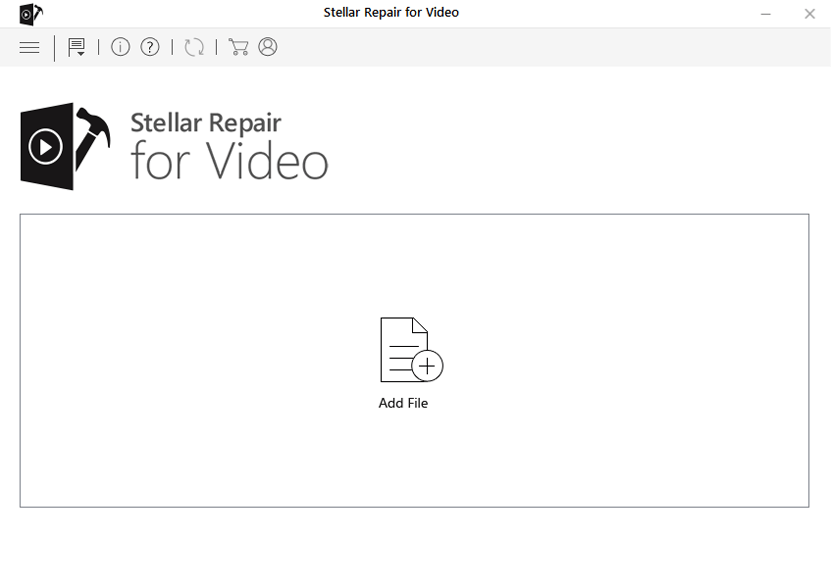
Step 1. Add Corrupted Videos to Stellar Video Repair
You should download and install Stellar Video Repair first. After the installation is finished you will get into the main interface where you can add corrupted videos. Click the “Add” button to add files. You can select several files at a time. If you want to remove a file you can click the “Remove” button or when you are ready to repair you just uncheck the file.
Step 2. Start Repairing the Corrupted Videos
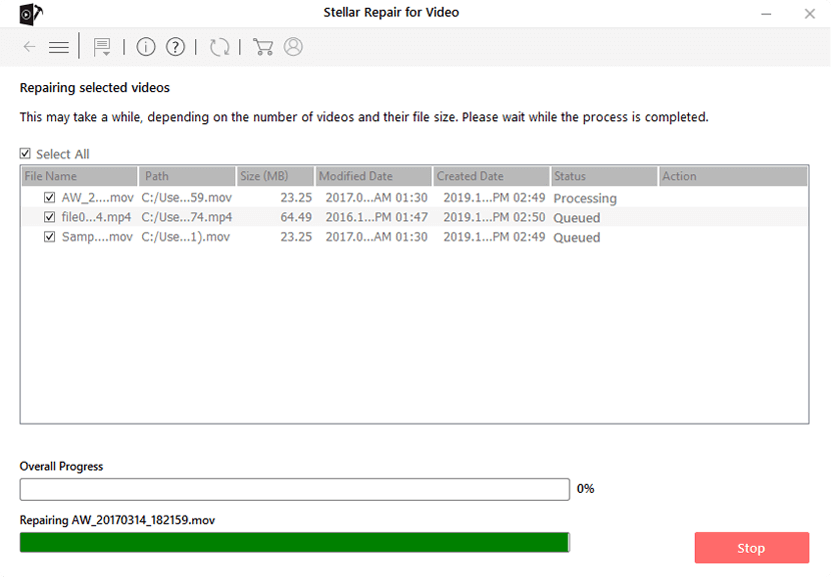
After all files are added, you can now start the repairing by clicking the “Repair” button. The repairing process will start and finish automatically and you can monitor the process through the “Overall Process” section.
Step 3. Preview the Repaired Videos
After the repairing process is complete, you can click on the videos then click “Preview” to check out the repaired videos. It should be noticed that you can only preview one minute of the video if you are using the demo version.
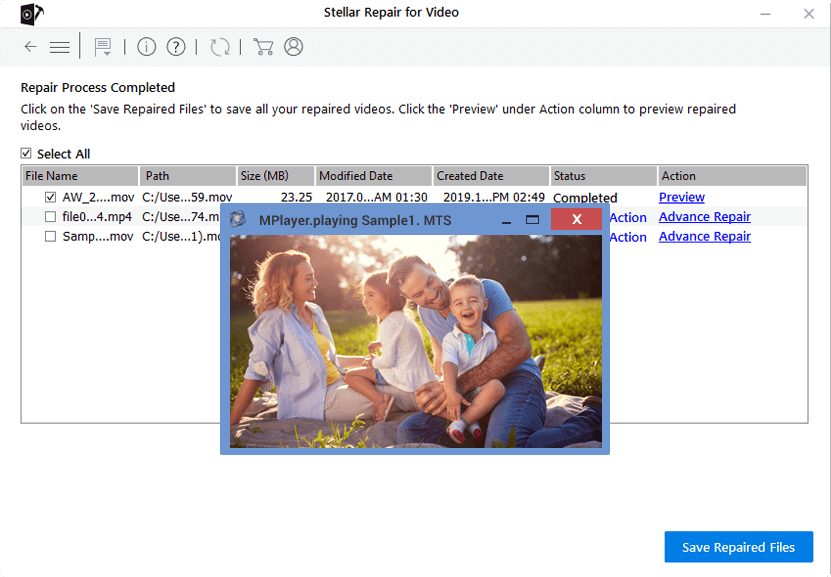
Step 4. Save the Repaired AVI Videos
If you think the videos are repaired properly through the preview, then you can now save the repaired videos to the desired location so you can find them easily later.
Just simple four steps will help you solve the video corruption issue once and for all, isn’t it convenient? As is said above, Dayactirka Muuqaalka Stellar can also repair damaged videos in different video formats. It also enables you to repair AVI, M4V, F4V, WMV, MOV, etc.
Soo dejiso bilaash ah Soo dejiso bilaash ah
Sidee ayuu qoraalkani waxtar u lahaa?
Guji xiddig si aad u qiimeyso!
Celceliska qiimeynta / 5. Codadka tirinta:

Soo dejiye fiidiyow oo bilaash ah oo online ah
Hal Guji si aad u soo dejiso fiidiyowyada YouTube, Facebook, Instagram, Twitter, Dailymotion, Reddit, Pornhub, OnlyFans, iyo in ka badan 10,000 oo shabakadood si fudud! Bilaash iyo badbaado!